Setup and settings
1. Start the main server in PSX
SPAD.neXt talks to PSX through the main server of PSX. PSX does not start it by itself, unless you have set it up that way.
- Start PSX.
- In the Instructor, open the page Network.
- Start the main server there.
Check in PSX that the main server uses port 10747. This is the port SPAD.neXt expects, unless you change it in step 2 below.
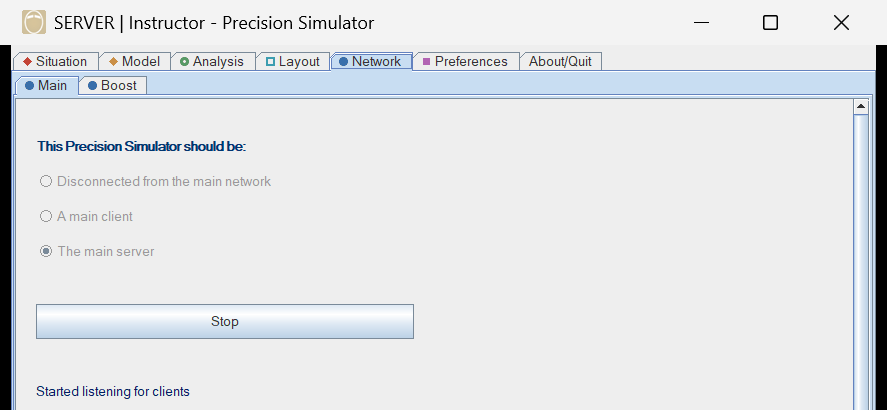
PSX can also be set to start its main server at program start. Look for this in the PSX documentation, or ask in the PSX forum.
2. Switch on PSX support in SPAD.neXt
Open Settings in SPAD.neXt and go to the group Simulations.
| Setting | Default | Meaning |
|---|---|---|
| Aerowinx PSX Support | Off | Switches the connection to PSX on. |
| Aerowinx PSX: Computer | 127.0.0.1 | Name or IP address of the computer PSX runs on. 127.0.0.1 is the computer SPAD.neXt runs on. It can also be the computer of a PSX router. |
| Aerowinx PSX: Port | 10747 | The port of the PSX main server, as set on the Network page of PSX. A PSX router has its own port, often 10748. |

Restart SPAD.neXt after you changed one of these settings. They are read when SPAD.neXt starts.
If Aerowinx PSX: Computer is empty, SPAD.neXt uses 127.0.0.1. If Aerowinx PSX: Port is not a number between 1 and 65535, SPAD.neXt uses 10747.
PSX on another PC
PSX and SPAD.neXt do not have to run on the same PC.
- On the PC with PSX, start the main server as in step 1.
- In SPAD.neXt, enter the name or the IP address of that PC in Aerowinx PSX: Computer. An IP address such as
192.168.1.20is the most reliable choice. - On the PC with PSX, allow port 10747 (or the port you use) in the firewall for incoming connections.
- Restart SPAD.neXt.
The status display (see below) tells you if the PC was not found, did not answer, or answered but is not PSX.
PSX behind a router
If you use a PSX router, for example for several add-ons or several PCs, SPAD.neXt connects to the router instead of PSX.
- Enter the router's computer in Aerowinx PSX: Computer and the router's port in Aerowinx PSX: Port. The port of a router is often 10748, but it is whatever you set in the router.
- Give SPAD.neXt full access in the router. With observer access SPAD.neXt can read, but PSX will not take what SPAD.neXt writes.
- The order in which you start router, PSX and SPAD.neXt does not matter. SPAD.neXt keeps trying.
Some routers hold back writes for a while after a new program has connected, for some of the values. This is reported for the router frankenrouter: for up to about two minutes after SPAD.neXt connected, some values cannot be written, and SPAD.neXt gets no message about it. We did not measure how long this takes. If a control of your device does nothing right after the start, wait two minutes and try again.
If PSX stops while SPAD.neXt is connected through a router, SPAD.neXt keeps showing connected. The router stays connected, so SPAD.neXt cannot tell. Values stop changing, and the CDUs keep showing their last page, until PSX is back. Then everything refreshes by itself, and you do not have to do anything.
3. Check the connection
The order in which you start PSX and SPAD.neXt does not matter. SPAD.neXt tries again every few seconds until PSX answers, and it connects again by itself after PSX was restarted.
Open Settings and go to the Status page. It shows Aerowinx PSX, with a text in the column Status and, if there is something to do, advice in the column Information.


In the texts below, {host} stands for the computer you entered and {port} for the port. SPAD.neXt shows the real name and number there.
| Status | What to do |
|---|---|
| connected, PSX 10.195 | Nothing. Everything works. The number is the version of PSX. |
| connected, PSX is loading a situation | Wait. PSX is loading a situation. SPAD.neXt continues by itself when PSX is ready. |
| PSX or its main server is not running: {host} | Start PSX and start its main server (Instructor > Network). Check that the port is the same in PSX and in SPAD.neXt. |
| computer not found: "{host}" | Check the name in Settings > Simulations. Try the IP address of the computer instead of its name. |
| no answer from computer: {host} | Is the computer switched on? Does its firewall allow port {port}? |
| a program answers, but it is not PSX: {host}:{port} | Check the port. PSX uses 10747, a PSX router often 10748. Another program, or another port of PSX, answers on the port you entered. |
| waiting for PSX (router without PSX?): {host}:{port} | SPAD.neXt is connected, but nothing from PSX has arrived yet. If you use a router, PSX is probably not connected to it. Start PSX. SPAD.neXt continues by itself. |
| not connected to {host}:{port} | Wait a few seconds. This is shown only until the first connection attempt has finished. |
On the Status page the computer name is on a second line, and the Information column next to it repeats what to do. The status bar of SPAD.neXt shows Aerowinx PSX: with the same message in one line. It appears once when the cause changes, for example when SPAD.neXt starts and PSX cannot be reached, and not on every new attempt.
The Status page shows the state at the moment you open it. Close it and open it again to refresh it.